 CTT Tools
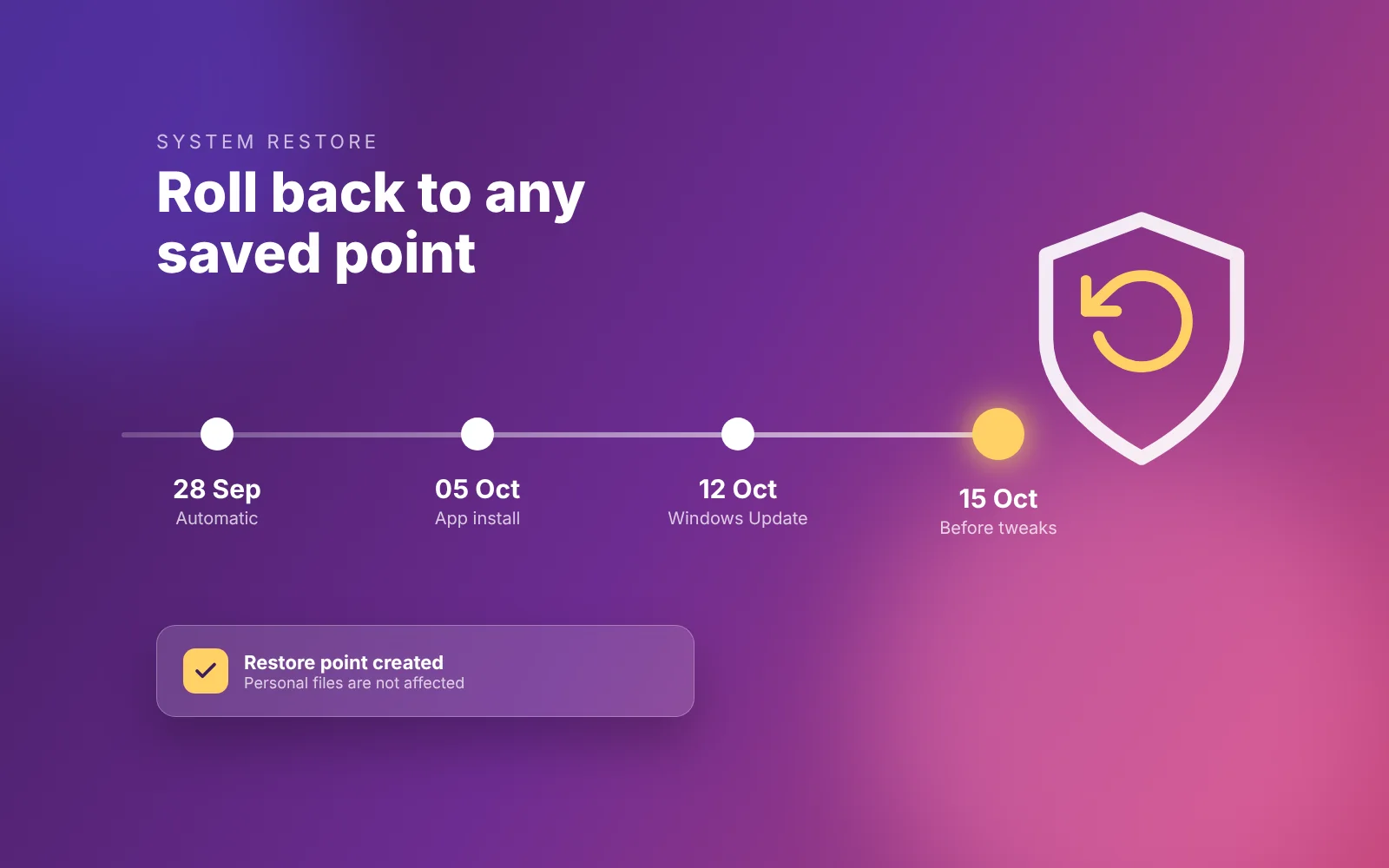
Tweaks change registry values, services and scheduled tasks. Most can be reversed, but only if you plan for it before you click Run Tweaks.
Step 1: make sure System Protection is on before CTT Tools
Restore points only work when System Protection is enabled for your system drive. On some PCs it is off by default.
- Press Win + R, type
sysdm.cpland press Enter. - Open the System Protection tab.
- Select your system drive (usually C:) and click Configure.
- Choose Turn on system protection, set the disk space slider to 5–10%, and click OK.
Step 2: create a restore point before using CTT Tools
The easy way is to leave Create Restore Point ticked in the Tweaks tab. It runs before any other tweak.
To create one yourself from an administrator terminal:
Checkpoint-Computer -Description "Before CTT Tools" -RestorePointType MODIFY_SETTINGSBy default Windows creates at most one restore point this way every 24 hours. If the command reports that a point was skipped, use the Create button in System Protection instead.
Option A: Undo Selected Tweaks in CTT Tools
This is the fastest way to reverse specific changes.
- Open CTT Tools and go to the Tweaks tab.
- Tick the same tweaks you applied earlier.
- Click Undo Selected Tweaks, then restart.
Undo sets each item back to the Windows default. If you had customised a setting yourself before using the tool, you will need to set it again.
Items that remove software, such as removing OneDrive, are not always reversible this way. Reinstall those apps from the Install tab or the Microsoft Store.
Option B: System Restore after CTT Tools
Use this when you are not sure which change caused a problem.
- Press Win + R, type
rstruiand press Enter. - Choose the restore point you created before tweaking.
- Click Scan for affected programs to see which apps will be removed or restored.
- Confirm and let the PC restart. Do not turn it off during the restore.
System Restore does not touch your documents, photos or other personal files. It does remove apps and drivers installed after the restore point.
If Windows will not start after CTT Tools
You can reach System Restore from the recovery environment:
- Turn the PC on and off at the Windows logo three times, or hold Shift while clicking Restart.
- Go to Troubleshoot > Advanced options > System Restore.
- Pick your restore point and follow the prompts.
Keep a short CTT Tools change log
Write down the tweaks you applied and the date, or export your selection as a config file. When something breaks weeks later, you will know exactly what to undo.
The config export guide explains how to save that list.