 CTT Tools
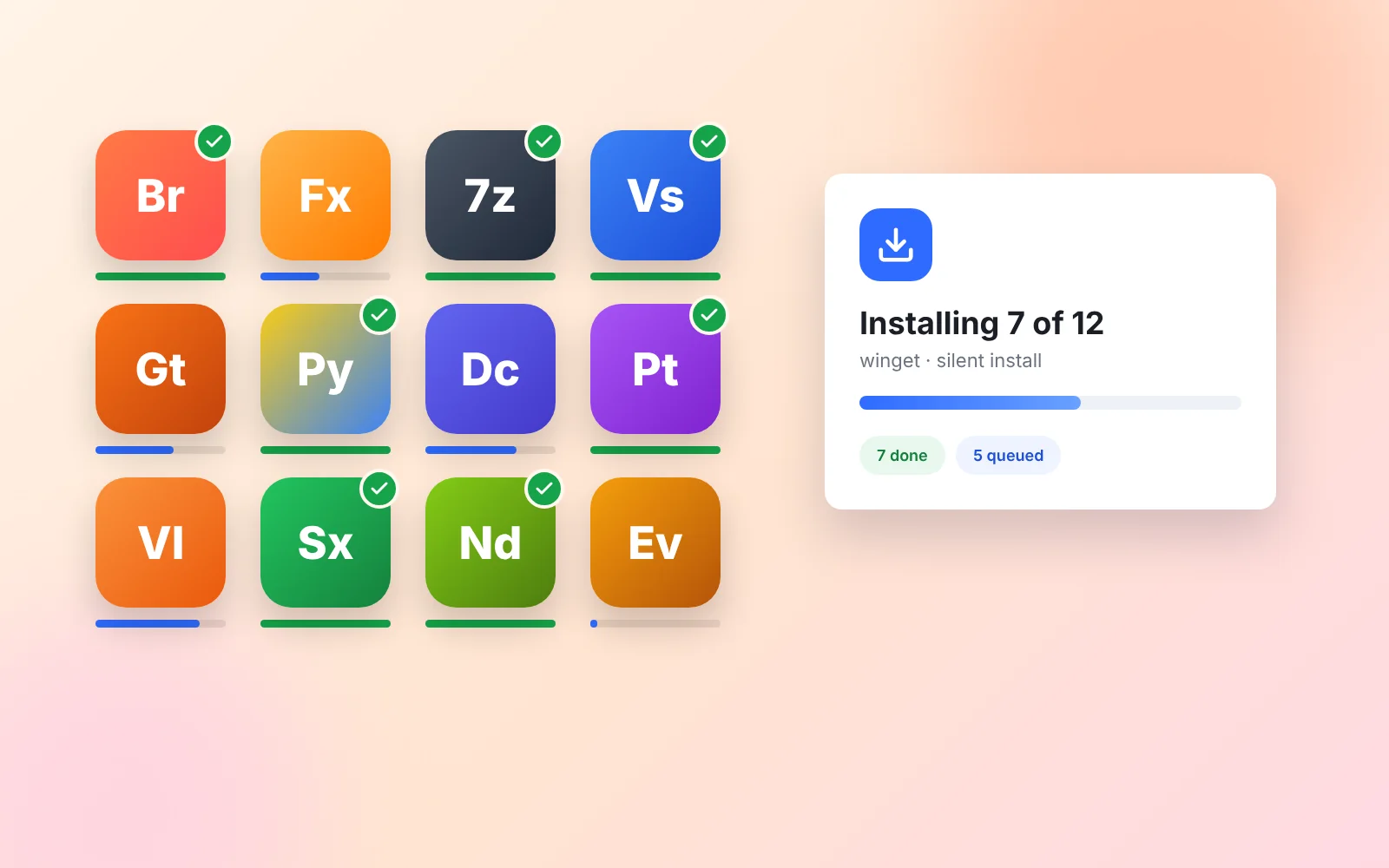
Setting up a new PC usually means visiting a dozen websites and clicking through a dozen installers. The Install tab in CTT Tools replaces that with one list of checkboxes.
How the CTT Tools Install tab works
The tool does not host any software itself. It passes your choices to a package manager:
- winget (Windows Package Manager) is used by default. It is built into current Windows 11 releases.
- Chocolatey can be used as an alternative package manager if you prefer it.
Both download installers from the publishers' official sources and run them silently. That is why you do not see the usual setup screens.
Install a batch of apps with CTT Tools
- Start CTT Tools as administrator. See the launch guide if you need help.
- Stay on the Install tab. Apps are grouped into categories such as Browsers, Communications, Development, Multimedia and Utilities.
- Use the search box at the top to find an app quickly instead of scrolling.
- Tick each app you want.
- Click Install/Upgrade Selected.
Progress appears in the terminal window behind the utility. Large apps such as IDEs can take several minutes each, so let the list finish before you close anything.
See what CTT Tools finds already installed
Get Installed scans your PC and ticks every app from the list that is already present. It is a quick way to review a machine you did not set up yourself.
Keep apps up to date with CTT Tools
Ticking an installed app and pressing Install/Upgrade Selected upgrades it to the newest version.
To update everything that winget manages, including apps you installed elsewhere, use Upgrade All. The same job from a terminal is:
winget upgrade --allRemove apps with CTT Tools
Tick the apps you want gone and click Uninstall Selected. The uninstall runs through the same package manager, so it uses each app's own uninstaller.
Uninstalling removes the program, but some apps leave settings in your user folder. Back up anything you might need, such as browser profiles, before you remove an app.
Tips for smooth installs in CTT Tools
- Install in smaller batches on slow connections. One failed download is easier to retry than a long queue.
- Restart after runtimes. Apps such as .NET runtimes or Visual C++ packages sometimes need a reboot before dependent apps work.
- Fix winget first. If every install fails at once, winget itself may be broken. Use WinGet Reinstall under Config > Fixes, covered in the Config tab guide.
- Clear the selection before you start a new task so you do not reinstall the previous batch by mistake.
Save your CTT Tools app list for the next PC
Your ticked apps can be exported to a small JSON file and loaded again later, even on another computer. The export and import guide walks through it.