 CTT Tools
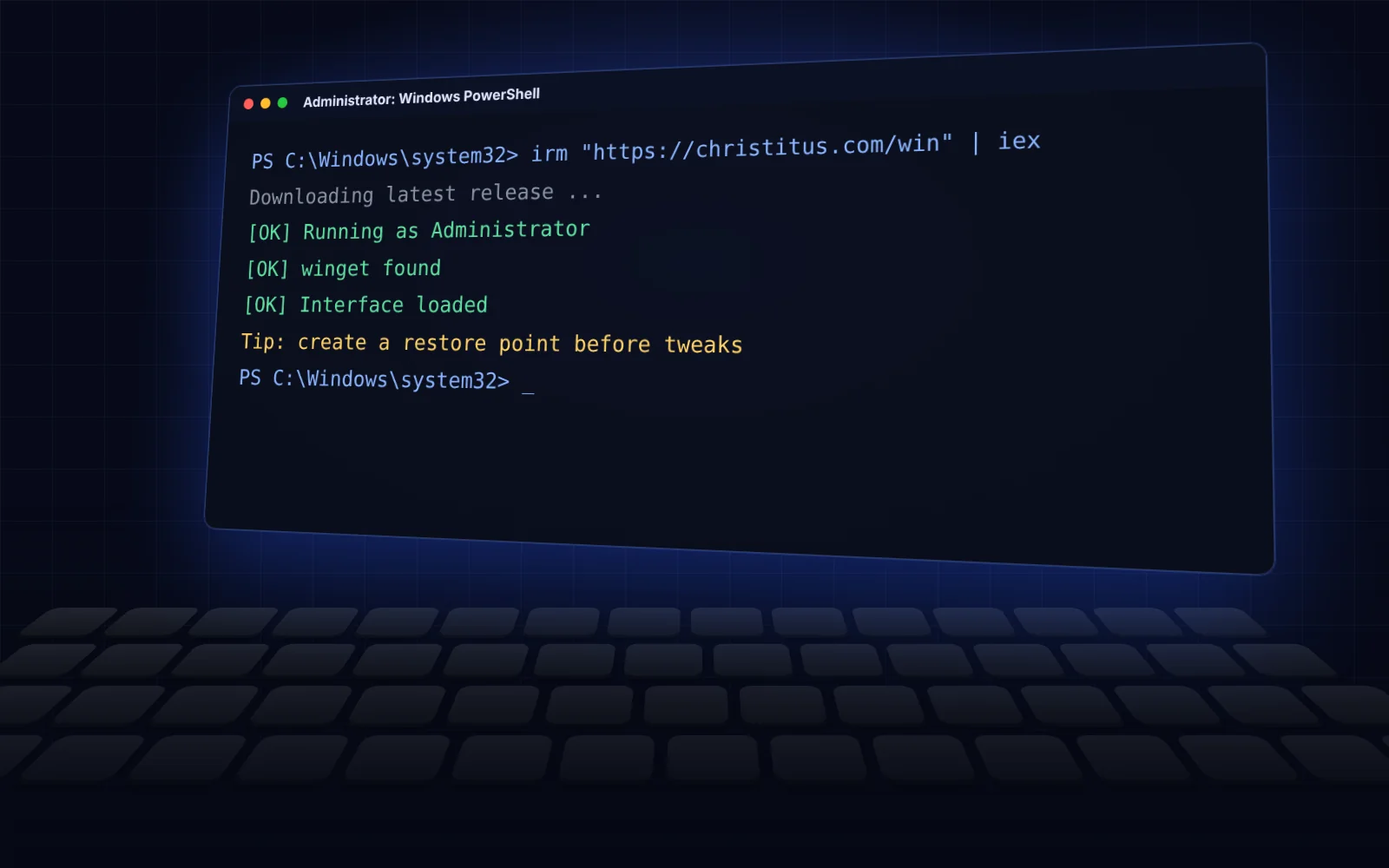
CTT Tools is a PowerShell script, not a classic installer. There is no setup wizard and nothing is copied into Program Files. You start it from an administrator terminal, use it, and close it.
This guide covers the two ways to launch it: the online one-line command and the offline file from our download section.
Before you start CTT Tools
- A Windows 11 PC and an account with administrator rights.
- An internet connection (needed for app installs even when you use the downloaded file).
- Any open work saved. Some tweaks restart File Explorer, which closes open folder windows.
Method 1: run CTT Tools with the one-line command
This always pulls the latest release from the developer's server.
- Right-click the Start button and choose Terminal (Admin). Accept the User Account Control prompt.
- Paste the command below and press Enter.
irm "https://christitus.com/win" | iexAfter a few seconds the Windows Utility window opens. The terminal window stays open behind it and prints a log of everything the tool does, so leave it running.
What the command does
irm is short for Invoke-RestMethod. It downloads the script as text. iex (Invoke-Expression) runs that text.
In plain terms, you are running code straight from the internet. That is normal for this project, but type the address exactly. Never use a copy of the command from an unknown video description or forum post that points to a different domain.
Method 2: run CTT Tools from the downloaded file
Use this when you want a fixed version, or when you need to check the file before running it. Our download contains winutil.ps1 version 26.08.19.
- Download the ZIP from the download section and extract it, for example to your Downloads folder.
- Open Terminal (Admin) and move into the extracted folder:
cd "$env:USERPROFILE\Downloads\ctt-tools-winutil-26.08.19"- Remove the "downloaded from the internet" mark Windows adds to the file:
Unblock-File .\winutil.ps1- Allow scripts for this terminal window only. This change ends when you close the window.
Set-ExecutionPolicy -Scope Process -ExecutionPolicy Bypass -Force- Start the utility:
.\winutil.ps1The file is a snapshot of one release. The online command always gets the newest one, so use it when you want the latest fixes and app list.
If christitus.com does not load for CTT Tools
Some networks and internet providers block or slow the developer's domain. The same release is published on GitHub, so you can start it from there instead:
irm "https://github.com/ChrisTitusTech/winutil/releases/latest/download/winutil.ps1" | iexWhat you see on first launch of CTT Tools
The window opens on the Install tab. The other tabs are Tweaks, Config, Updates and Win11 Creator.
Opening the tool changes nothing. Changes only happen when you tick items and press an action button such as Install/Upgrade Selected or Run Tweaks.
Good habits for every CTT Tools session
- Create a restore point before you apply tweaks. The restore point guide shows how.
- Change a few things at a time, then test your PC.
- Read the terminal log if something looks wrong. It shows each step and any error.
- Close both windows when you are done. The tool does not keep running in the background.