 CTT Tools
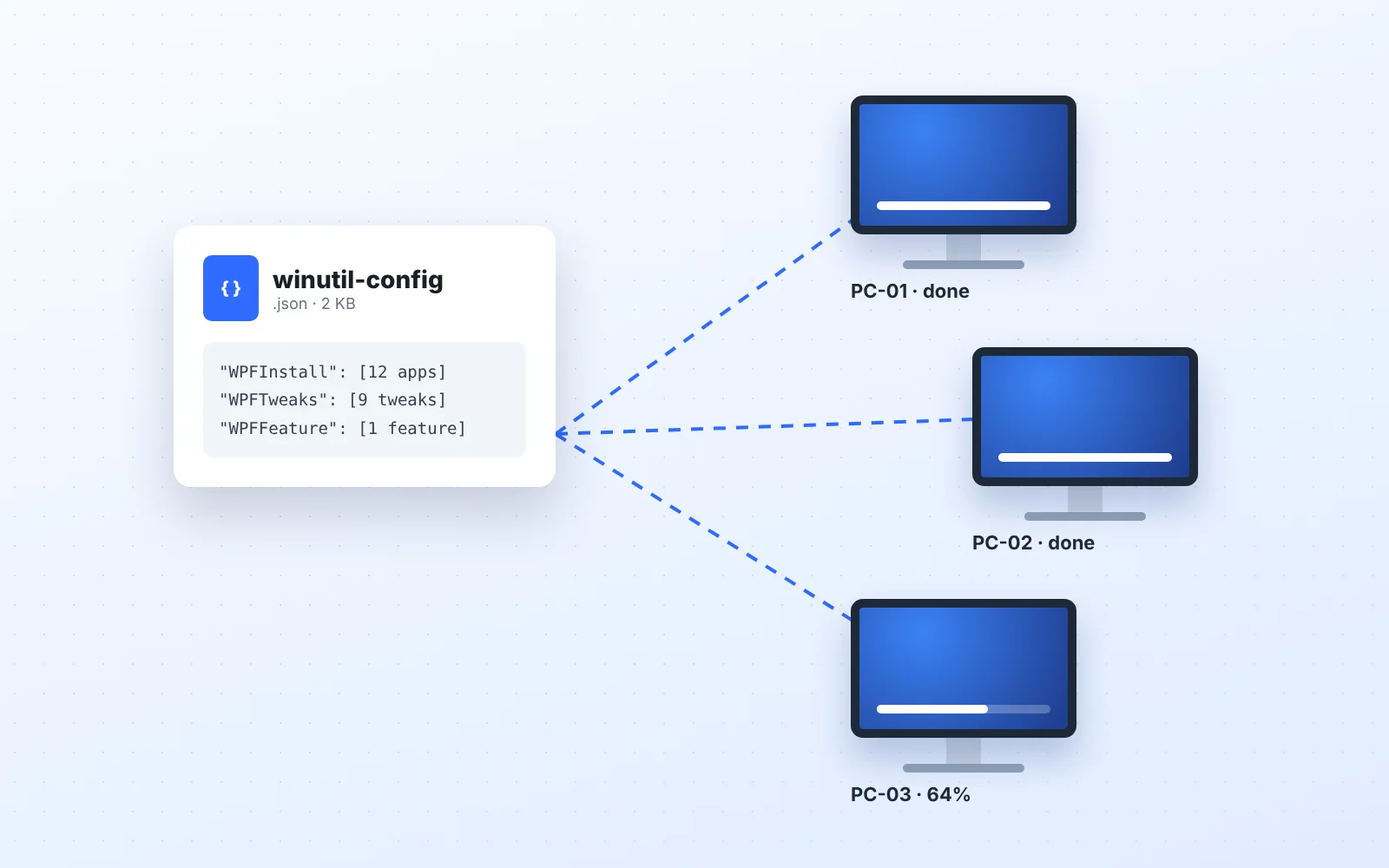
If you set up more than one PC, such as family computers, a small office or a lab, you do not need to tick the same boxes every time. CTT Tools can save your choices to a file and apply them again.
What the CTT Tools config file stores
The export is a small JSON file listing the items you selected:
- Apps from the Install tab
- Tweaks from the Tweaks tab
- Features from the Config tab
It does not contain personal data, passwords or licence keys.
A simplified example looks like this:
{
  "WPFInstall": ["WPFInstallgit", "WPFInstallvscode", "WPFInstall7zip"],
  "WPFTweaks":  ["WPFTweaksRestorePoint", "WPFTweaksTele", "WPFTweaksDeleteTempFiles"],
  "WPFFeature": ["WPFFeaturewsl"]
}
The exact item names come from the release you use, so always create the file by exporting from the tool rather than typing it by hand.
Export your CTT Tools selection
- Tick the apps, tweaks and features you want on every machine.
- Open the settings (gear) menu in the top corner of the window and choose Export.
- Save the file somewhere you can reach from other PCs, such as a USB drive or cloud folder.
Import a CTT Tools config on another PC
- Start CTT Tools as administrator on the new PC.
- Open the settings menu and choose Import, then pick your file.
- Your saved items are ticked automatically. Review them, then run each tab's action button.
Apply a CTT Tools config with no clicks
For a hands-off setup, pass the file path on the command line. The -Run switch applies the selections without waiting for you:
iex "& { $(irm christitus.com/win) } -Config C:\setup\winutil-config.json -Run"With -Run there is no review step. Test the same file on one PC first, and keep Create Restore Point in the tweak list.
Practical ideas for CTT Tools configs
- Keep one file per role, for example "office-laptop.json" and "gaming-desktop.json".
- Re-export after major releases. Item names occasionally change, and old entries are skipped.
- Store it with your other setup notes so a rebuild after a drive failure takes minutes.
Related CTT Tools guides
To see what each tweak does before you add it to a shared file, read Tweaks explained. For the app list itself, see installing apps in bulk.