 CTT Tools
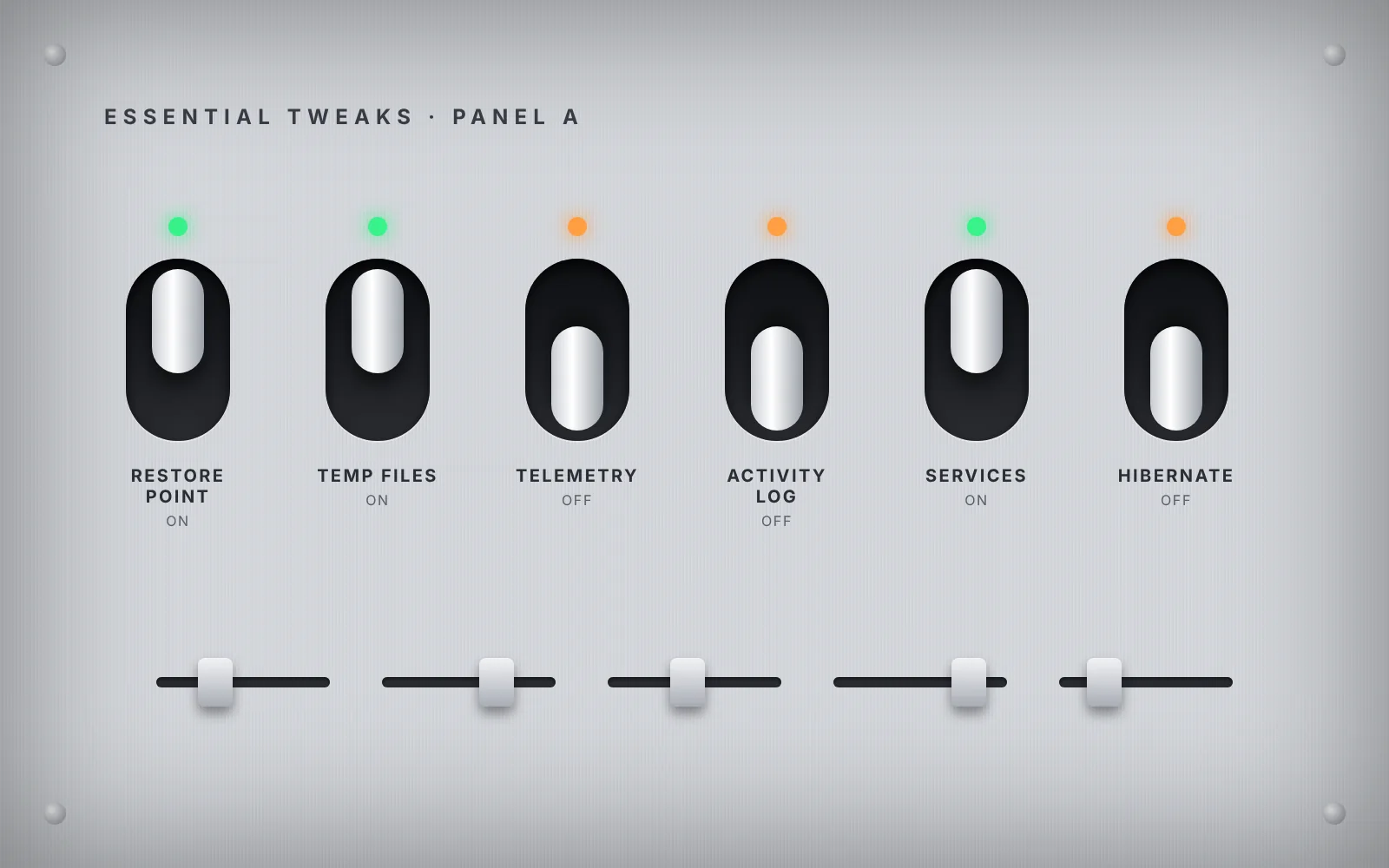
The Tweaks tab is the part of CTT Tools that changes how Windows behaves. Each tweak edits registry values, services or scheduled tasks for you.
Knowing what each group does helps you pick the right ones for your PC.
The three CTT Tools tweak groups
| Group | Purpose | Risk |
|---|---|---|
| Essential Tweaks | Cleanup, privacy and background-activity changes that suit most PCs | Low |
| Advanced Tweaks (CAUTION) | Removing components and changing network or system behaviour | Medium to high |
| Customize Preferences | On/off switches for look and feel, such as dark mode and file extensions | Very low |
At the top of the tab, Standard and Minimal buttons pre-select a recommended set. You can then add or remove items before applying.
Common Essential Tweaks in CTT Tools
Item names can change slightly between releases. Hover over any item to read its tooltip.
- Create Restore Point – saves a system snapshot before anything else runs. Leave it ticked.
- Delete Temporary Files – clears the Windows and user temp folders.
- Disable ConsumerFeatures – stops Windows from installing suggested apps and games on its own.
- Disable Telemetry – lowers the diagnostic data Windows sends to Microsoft.
- Disable Activity History – stops Windows from recording the apps and files you open.
- Disable Location Tracking – turns off system location. Weather and Maps apps will ask you to enter a city instead.
- Set Services to Manual – switches many services to start only when needed rather than at boot.
- Run Disk Cleanup – runs the built-in cleanup on the system drive.
- Disable Hibernation – removes the hibernation file to free disk space. On laptops it also removes the Hibernate option and Fast Startup.
CTT Tools Advanced Tweaks: read before you tick
These are marked CAUTION for a reason. Common examples include:
- Removing OneDrive or Microsoft Copilot
- Disabling background apps
- Preferring IPv4 over IPv6, or disabling IPv6
- Restoring the classic right-click menu
- Blocking Adobe network access
Some of these break features you may rely on. Removing OneDrive stops folder backup, and disabling IPv6 can affect some home networks and Xbox features.
Only apply an Advanced tweak when you know what it removes and you have a restore point. Apply them one or two at a time so you can tell which change caused a problem.
Customize Preferences in CTT Tools
These are simple switches. They usually take effect as soon as you flip them, and you can flip them back the same way. Examples:
- Dark Theme for Windows
- Show file extensions and hidden files
- NumLock on startup
- Bing search in the Start menu
- Center taskbar items
- Detailed blue-screen information
Performance plans in CTT Tools
The tab can add and activate the Ultimate Performance power plan. It keeps the CPU ready at all times, which helps some desktop workloads. On a laptop it drains the battery faster, so most laptop users should skip it.
How to apply tweaks in CTT Tools
- Tick Create Restore Point plus the tweaks you chose.
- Click Run Tweaks.
- Watch the terminal until it reports that tweaks have finished.
- Restart the PC so every change takes effect.
CTT Tools on a laptop or desktop?
For a laptop: the Essential set without Disable Hibernation is a sensible start. Keep the default power plan.
For a gaming or work desktop: the full Essential set plus your preferences is a common choice. Add Advanced items only for a specific reason.
If something feels off afterwards, the undo guide shows both ways back.