 CTT Tools
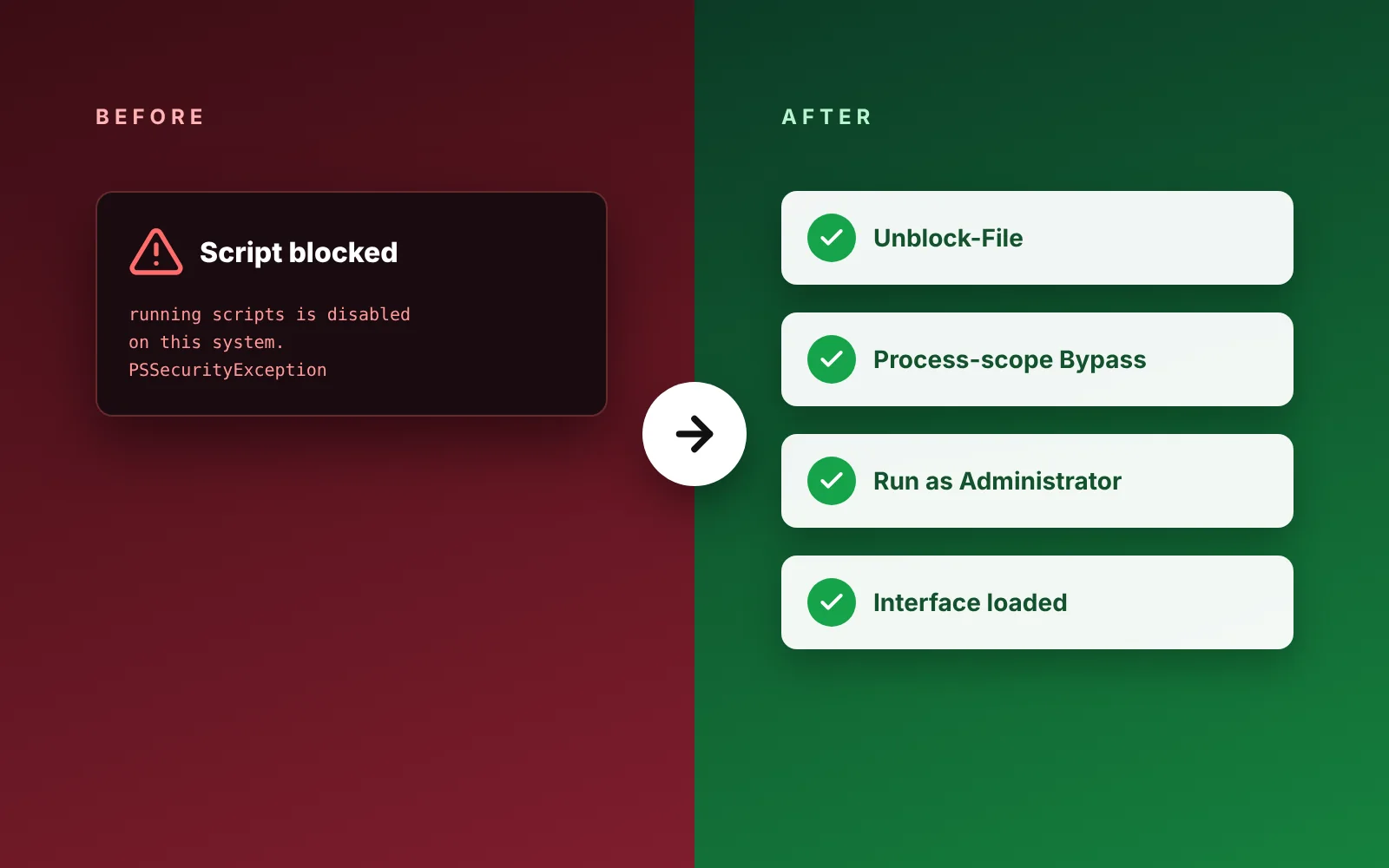
Most launch problems come from a few causes: PowerShell's script rules, network blocks, or security software. Find the message you see below and try the matching fix.
“Running scripts is disabled on this system” error in CTT Tools
You will see this when you run the downloaded winutil.ps1 file directly. Windows blocks unsigned scripts by default. Allow them for the current window only:
Unblock-File .\winutil.ps1
Set-ExecutionPolicy -Scope Process -ExecutionPolicy Bypass -Force
.\winutil.ps1
The change ends when you close the terminal, so your system-wide policy stays the same.
“The remote name could not be resolved” or nothing downloads in CTT Tools
- Check that other websites open in your browser.
- Some internet providers block the developer's domain. Use the GitHub address instead:
irm "https://github.com/ChrisTitusTech/winutil/releases/latest/download/winutil.ps1" | iex- On a work or school network, a proxy or firewall may block scripts entirely. Ask your IT team before trying anything else.
“Could not create SSL/TLS secure channel” error in CTT Tools
Older PowerShell sessions may not use TLS 1.2 by default. Enable it for the session and run the launch command again:
[Net.ServicePointManager]::SecurityProtocol = [Net.SecurityProtocolType]::Tls12Antivirus blocks or deletes the CTT Tools script
Security tools sometimes flag scripts that change system settings, even when the script is legitimate. Before you allow anything:
- Make sure the file came from the official release or our download section.
- Compare its SHA-256 hash with the value shown in our download section:
Get-FileHash .\ctt-tools-winutil-26.08.19.zip -Algorithm SHA256- If the hash matches, restore the file from Windows Security > Protection history.
If the hash does not match, delete the file and download it again. Do not allow a file you cannot verify.
The CTT Tools window does not open or closes at once
- Make sure the terminal is running as administrator. The title bar should start with "Administrator".
- If you started it from PowerShell 7 and see errors, open a Windows PowerShell tab from the Terminal drop-down menu and try again.
- Read the last red lines in the terminal. They usually name the exact problem.
App installs fail in CTT Tools
- Use Config > Fixes > WinGet Reinstall, restart, and try again.
- Update App Installer from the Microsoft Store. It contains winget.
- Test winget on its own with
winget --version.
A CTT Tools tweak did not seem to apply
Many changes need File Explorer to restart, a sign-out or a full reboot. Restart first.
If it still has not applied, check the terminal log for that tweak's line. Some tweaks do not apply to every Windows edition.
Still stuck with CTT Tools?
Search the issues on the official GitHub repository for your error message. If nobody has reported it, open a new issue and include:
- Your Windows version
- The release number
- The terminal output
For problems after tweaks, the undo guide shows how to roll back.