 CTT Tools
Windows Update is where many people want more control. Feature updates can change menus, and a bad driver update can cause crashes.
The Updates tab in CTT Tools offers three presets that set Windows Update policies for you.
The three CTT Tools update options
Default Settings
Removes any update policies the tool or you have set and returns Windows Update to its out-of-box behaviour. Use it to undo either of the other two options.
Security Settings (recommended)
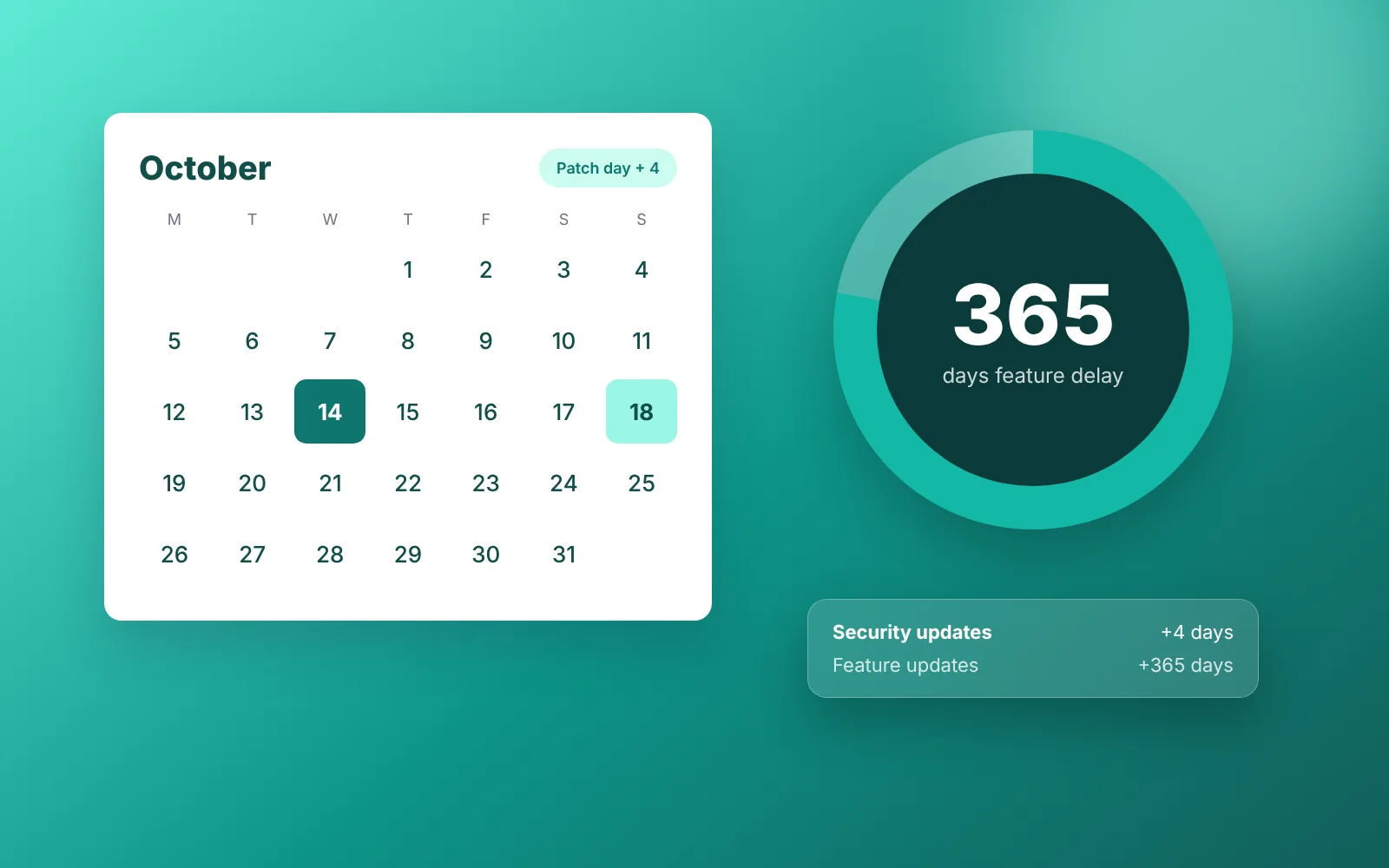
Delays feature updates (the big yearly releases) by up to 365 days and security/quality updates by 4 days.
You still get security fixes, just a few days after release, which gives time for faulty patches to be pulled. Feature releases arrive once they have had months of real-world fixes.
Disable All Updates (not recommended)
Stops Windows Update completely. This leaves the PC without security fixes, which is risky on any computer that goes online.
It only makes sense for offline machines, such as a dedicated recording PC or a lab system.
Windows 11 Home versus Pro in CTT Tools
Update deferral relies on policies that Windows 11 Pro, Enterprise and Education fully support. Home editions do not honour all of them.
On Home you can still pause updates for a few weeks in Settings > Windows Update > Pause updates.
If you use Windows 11 Home, check Settings after applying the Security option to see which deferrals actually took effect.
How to apply an update option in CTT Tools
- Start CTT Tools as administrator and open the Updates tab.
- Click the option you want.
- Wait for the terminal to confirm the change, then restart the PC.
How to check the CTT Tools result
Open Settings > Windows Update. When policies are active you will see a line saying some settings are managed by your organisation. That is expected, even on a home PC.
Advanced users can see the policy values in the registry at:
HKEY_LOCAL_MACHINE\SOFTWARE\Policies\Microsoft\Windows\WindowsUpdateWhich CTT Tools update option to pick
- Most home and office PCs: Default or Security.
- Machines that must stay stable, such as a work desktop or a streaming PC: Security.
- Offline machines only: Disable.
Whatever you choose, run Windows Update by hand now and then. Microsoft Store apps and drivers are updated separately, and you can manage apps from the Install tab.
Going back to default after CTT Tools
Open the Updates tab, click Default Settings and restart. Windows Update then behaves as it did on a fresh install.