 CTT Tools
How to Run CTT Tools from PowerShell on Windows 11
Launch the utility with the one-line command or the downloaded winutil.ps1 file, with a fallback for when the main site is unreachable.
Read full guideCTT Tools is a free, PowerShell-based utility that installs software, adjusts Windows settings, controls updates and repairs common problems. Every option is explained in advance, so you know what it changes before you apply it.
CTT Tools is built on Chris Titus Tech’s Windows Utility (WinUtil), which started as one person’s personal script and became a public open-source project. You can read its code and release history on GitHub.
It gathers everyday Windows jobs, from installing apps to repairing the system, into a single window so you spend less time digging through menus.
It suits a fresh PC setup, a review of your current settings, or repeating the same setup on several computers.
Behind the scenes it relies on PowerShell, winget and built-in Windows tools such as DISM and SFC.
Each action appears in the terminal window while it runs, so you can see exactly which command or setting was applied.
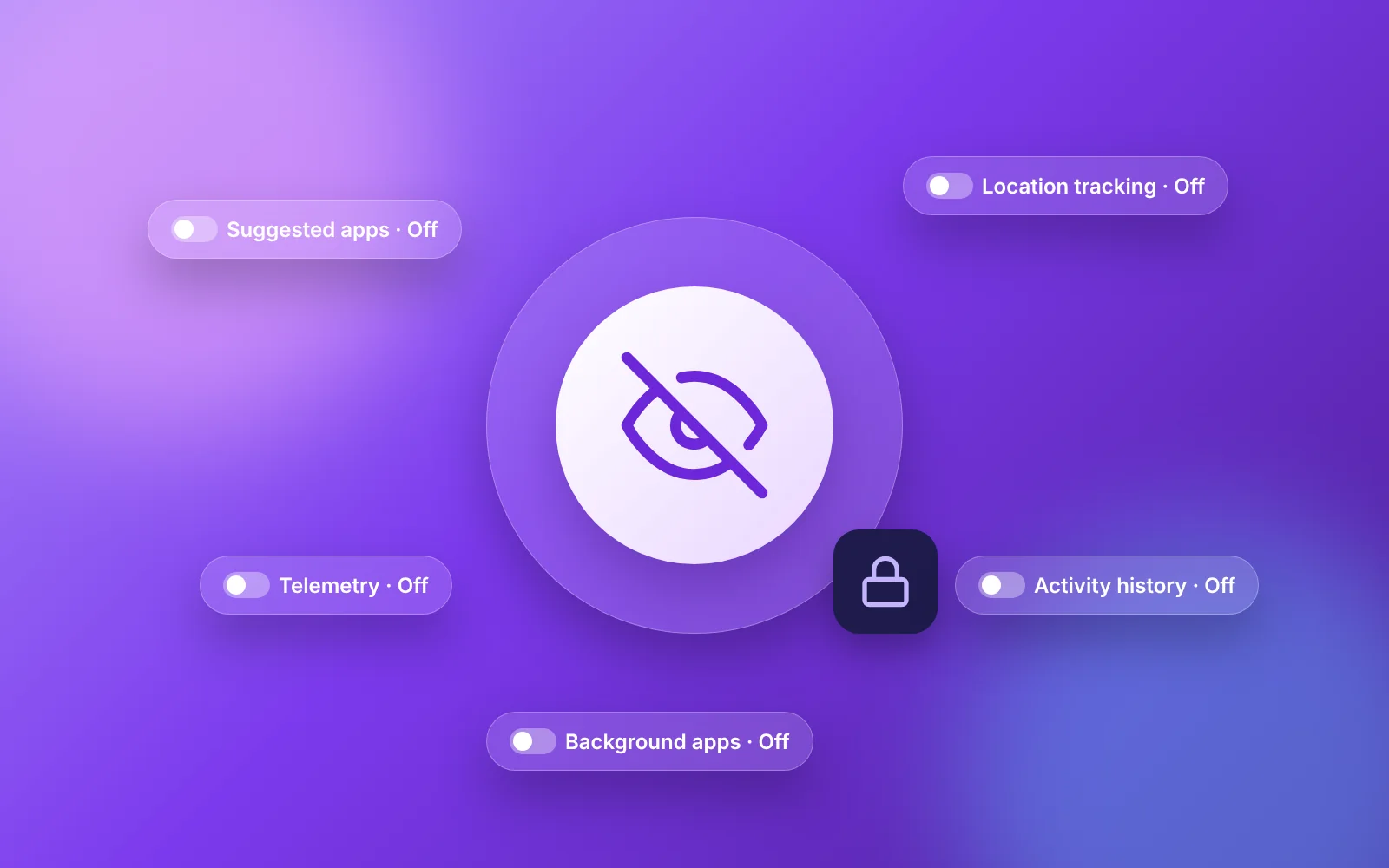
CTT Tools groups its functions into tabs for app installs, tweaks, configuration, updates and custom ISO creation.
CTT Tools installs, upgrades and removes popular apps in batches through winget, and it can detect which supported apps are already present on your PC.
Use Essential tweaks for common changes, Advanced options only when you need them, and quick preferences for things like dark mode or file extensions.
Turn on optional Windows features, reset network or update components, run SFC and DISM, and open the classic control panels.
Select a Windows Update preset to return to default behaviour or change when updates arrive. Switching updates off is not advised for PCs that go online.
Create a leaner Windows 11 ISO from Microsoft's official image, minus many preinstalled apps, then save it or write it to a USB drive. Licensing and activation behave as usual.
Store your chosen apps and tweaks in a JSON file, then reuse that setup on another PC or run it from the command line.
CTT Tools launches from an administrator terminal, with no traditional installer. Run it online or use the downloaded script.
Right-click the Start button, pick Terminal (Admin) and accept the User Account Control prompt.
If Terminal is missing, search the Start menu for PowerShell, right-click it and select Run as administrator.
The online launch command downloads the newest CTT Tools release and opens the utility window as soon as it runs in an elevated terminal.
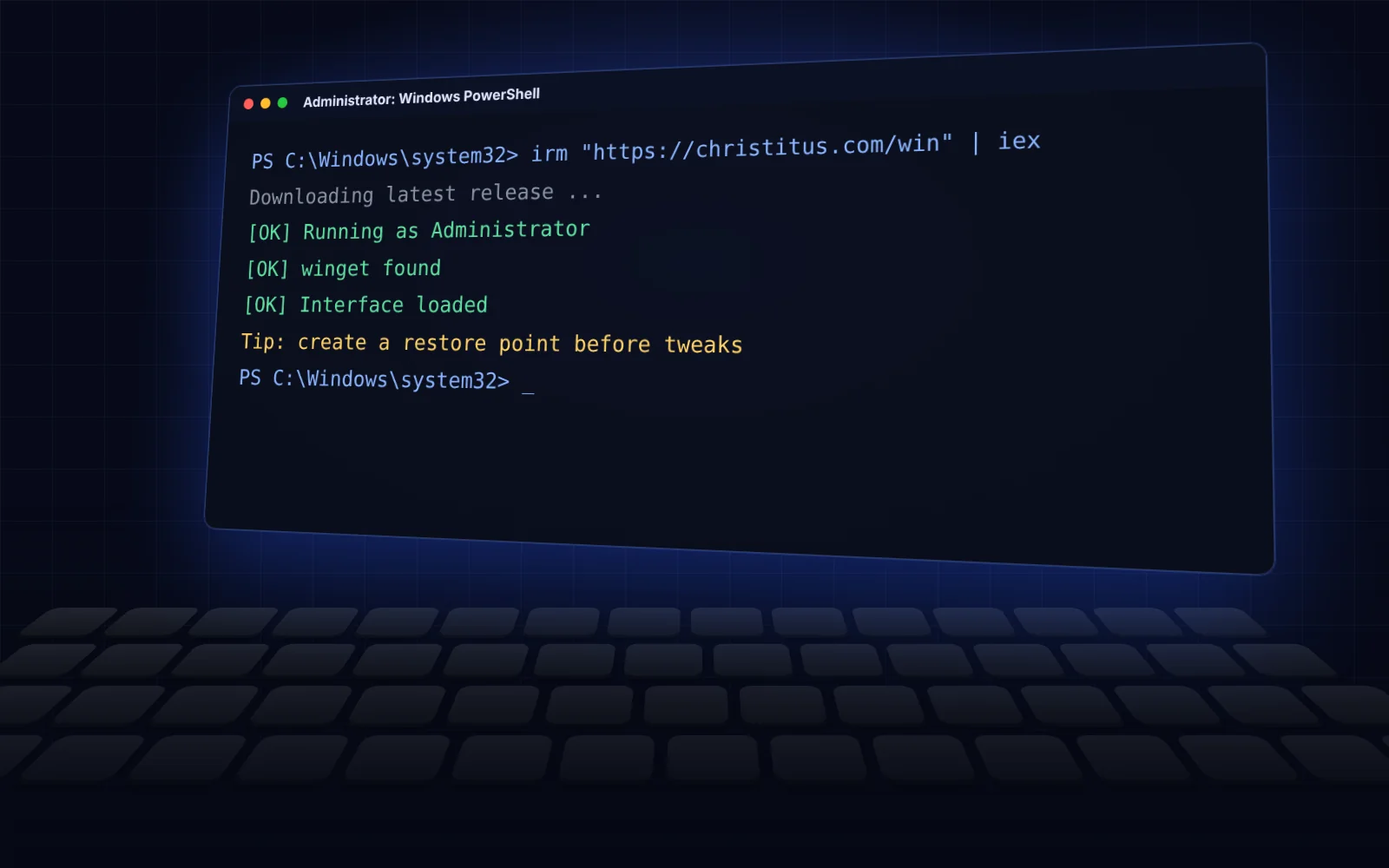
irm "https://christitus.com/win" | iexThe offline method uses the fixed winutil.ps1 release. Extract the ZIP, open an admin terminal in that folder, allow scripts for the current session only, then run the file.
Set-ExecutionPolicy -Scope Process -ExecutionPolicy Bypass -Force
.\winutil.ps1On the Tweaks tab, leave Create Restore Point ticked. It runs before any other change and gives you a way back.
Select the apps or tweaks you need and apply them from the matching tab. The terminal log shows progress, and a restart completes the changes.
Some changes, such as preferences, apply instantly. Others only show after File Explorer or Windows restarts.
Tweaks are sorted by how much they change. Begin with Essential, add preferences, and handle Advanced items carefully.
Cleanup and privacy changes that fit most PCs.
Deeper changes that remove or disable parts of Windows.
Simple switches you can reverse whenever you like.
Tweaks are applied together when you press Run Tweaks, while preferences take effect the moment you toggle them. Undo Selected Tweaks sets chosen items back to the Windows default, and the restore point covers everything else. The tweaks guide describes each item in detail.
CTT Tools has modest requirements, and most Windows 11 PCs already meet every one.
Windows 10 reached end of support on 14 October 2025, and the project has dropped it too. Parts of the tool may still work there, but fixes and new features aim at Windows 11 only. If you are on Windows 10, plan your move to Windows 11 before depending on the utility.
This ZIP holds one file, winutil.ps1, the unmodified official release script of Chris Titus Tech's Windows Utility.
Extract the ZIP and run the script from an administrator terminal. The online command pulls the latest release, whereas this download is a fixed version you can verify.
SHA-256: e61dd603045d2b93115968a97e667c072d6572bbd5c1c9f9782f04857c2696b9
You can verify the CTT Tools ZIP by comparing its SHA-256 hash with the published value using this PowerShell command:
Get-FileHash .\ctt-tools-winutil-26.08.19.zip -Algorithm SHA256CTT Tools alters genuine system settings, so these habits help you keep every change reversible.
Tweaks do not touch your documents, but a full backup protects you from any mistake, your own included.
Restore points work only when protection is switched on for drive C:. Check it once in System Properties.
Apply a few tweaks, restart and test. If something breaks, you will know exactly which change caused it.
Hover over each item before ticking it. The short description tells you what it changes.
On a computer managed by your employer or school, ask IT first, because their policies may clash with these changes.
Run CTT Tools only through the official command or a file whose SHA-256 hash matches the published value.
In-depth CTT Tools articles on running the utility, applying tweaks, installing apps, controlling updates and fixing errors.
 Getting started
Launch the utility with the one-line command or the downloaded winutil.ps1 file, with a fallback for when the main site is unreachable.
Read full guide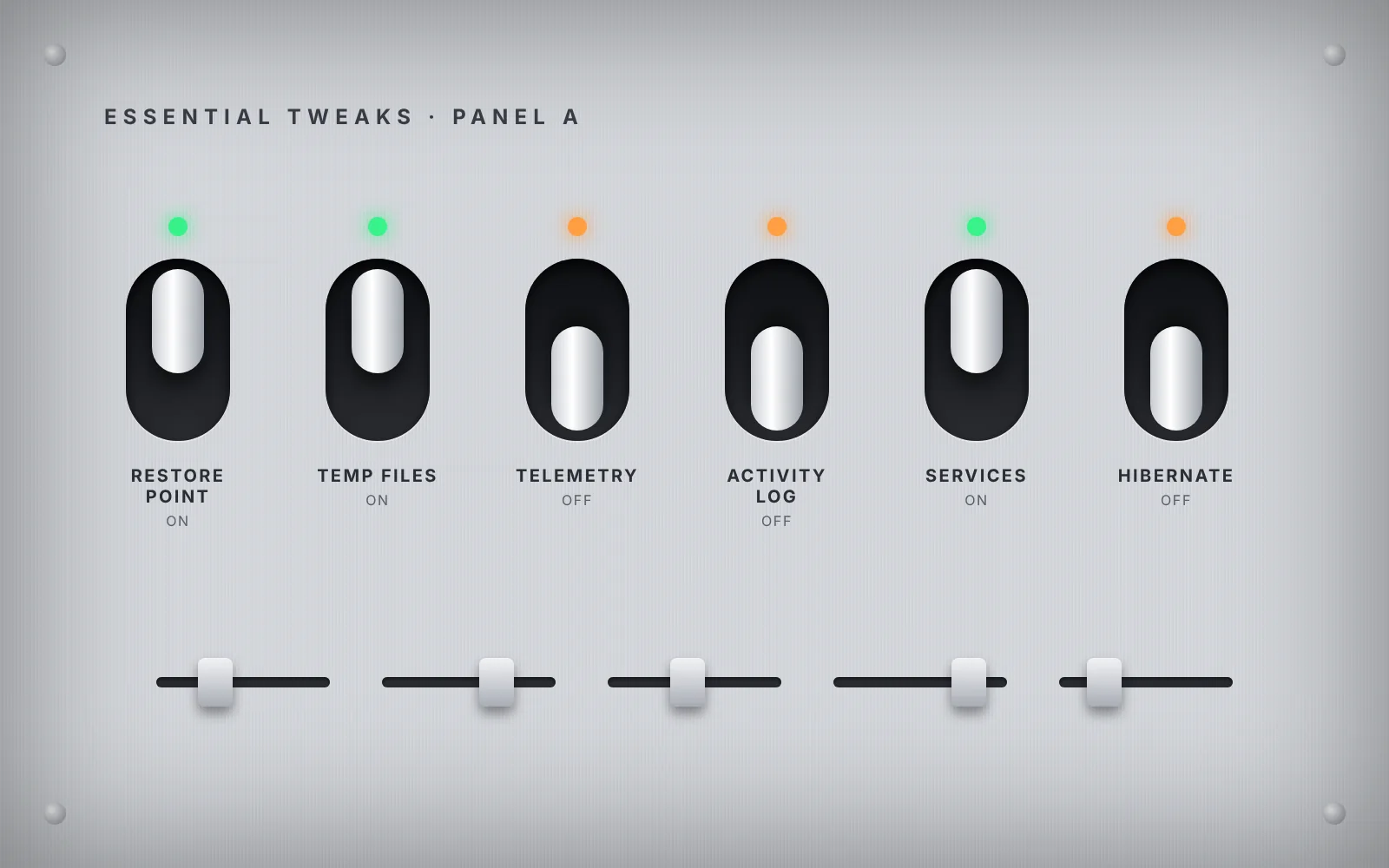 Tweaks
What the Essential, Advanced and Preference tweaks really change, which to skip on a laptop, and how to apply them safely.
Read full guide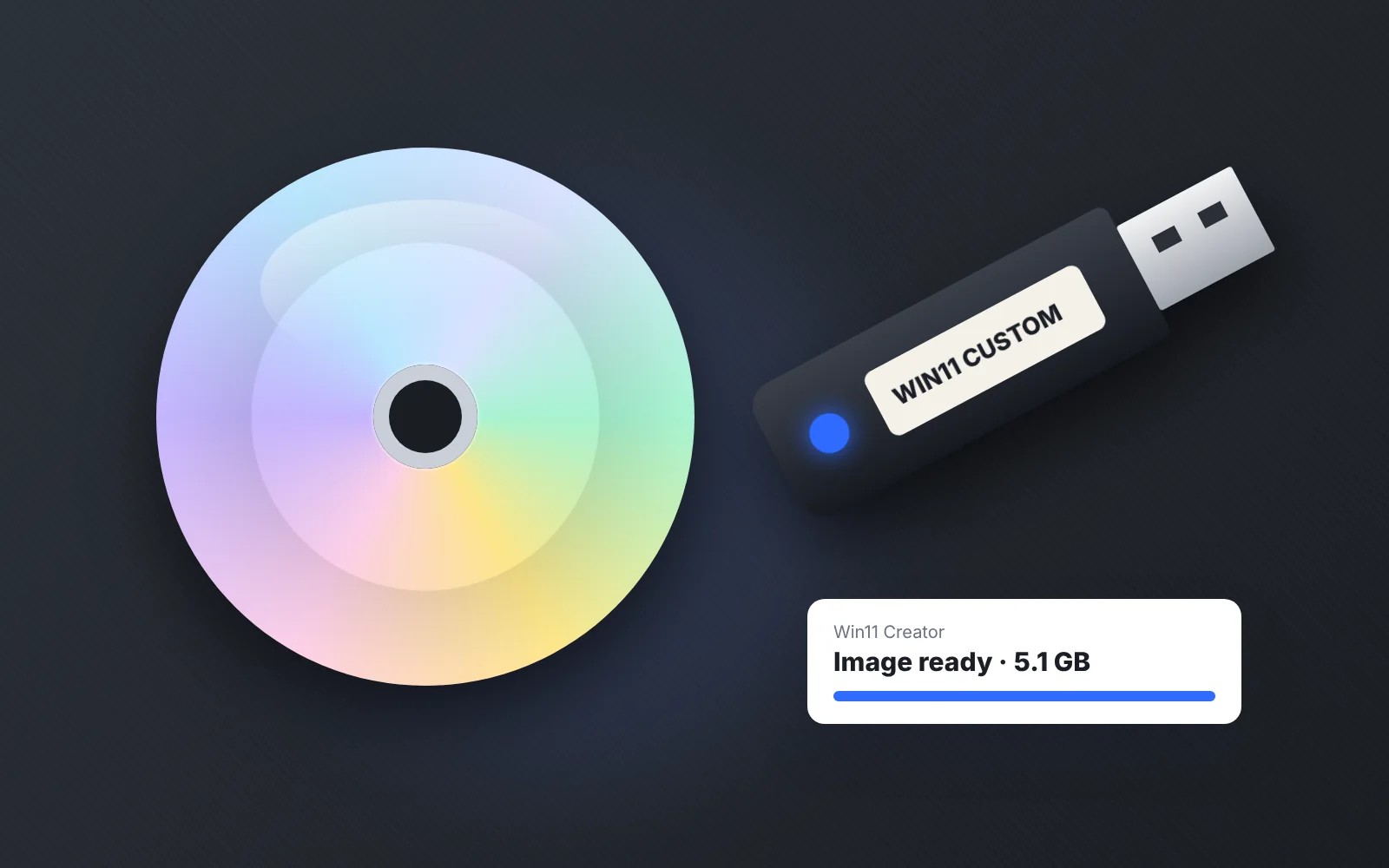 Win11 Creator
Convert an official Windows 11 ISO into a lighter image without preinstalled apps and AI extras, then save it or write it to USB.
Read full guideQuick answers to the questions people ask most about CTT Tools.
CTT Tools, also known as WinUtil, is a free PowerShell utility for installing apps, applying Windows tweaks, managing updates, repairing the system and building custom Windows 11 images.
Yes. It is released under the MIT licence and its source code is public on GitHub. There is no paid edition and no account to create.
Simply opening the tool changes nothing. Create a restore point, apply a few changes at a time and skip Advanced tweaks you do not understand.
Current releases target Windows 11. Microsoft has ended support for Windows 10, and this project does not fix Windows 10 problems.
Yes. Open Terminal or PowerShell as administrator. Check with your IT team before using it on a managed work or school computer.
Most tweaks can be reversed with Undo Selected Tweaks. For wider recovery use a restore point, and reinstall removed apps from the Install tab.
Apps come through winget, or optionally Chocolatey, from their own package sources. CTT Tools neither hosts nor alters them.
The online command always fetches the newest CTT Tools release, while the offline ZIP is pinned to version 26.08.19 and can be verified with its SHA-256 hash.
Only if you choose that option. The Updates tab offers Default, Security and Disable, and disabling updates is risky for any PC connected to the internet.
Yes. Export your selections to a JSON file, import it on another PC, or apply it from the command line using -Config and -Run.